# Sign out Inventory

## View Signed Out Items&#x20;

## Step 1

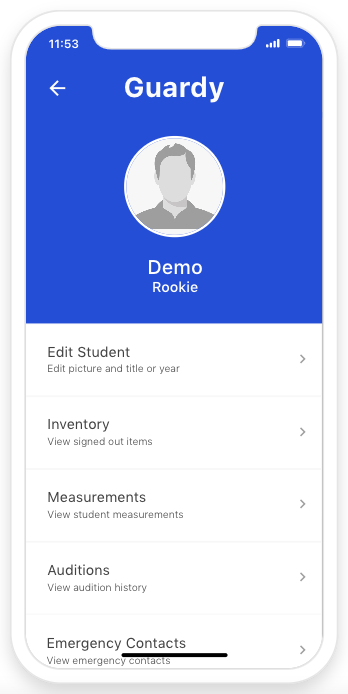
You will want to find the student. Then once you're in the students profile. You want to click on the Inventory menu item.&#x20;

<div align="left"><figure><img src="https://4175712474-files.gitbook.io/~/files/v0/b/gitbook-x-prod.appspot.com/o/spaces%2FhPsk0uM1YeF90QV1USxb%2Fuploads%2FYVbgSi2pAkGymhCsRDBc%2FScreen%20Shot%202023-04-30%20at%2011.54.00%20AM.png?alt=media&#x26;token=e27cf010-d7c8-4b53-b516-4f379a3b647d" alt=""><figcaption></figcaption></figure></div>

## Step 2

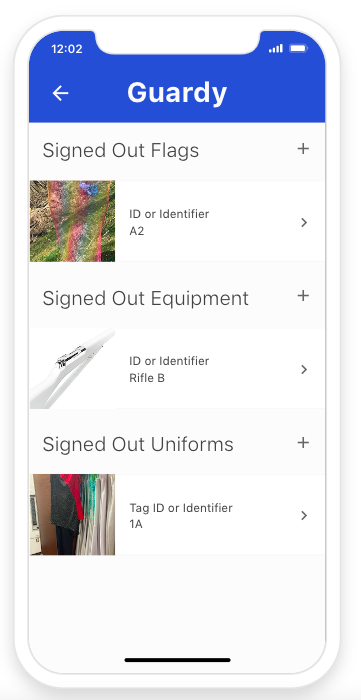
Now you can review all the items signed out by this student. You can also view more details by click on the individual item.&#x20;

<div align="left"><figure><img src="https://4175712474-files.gitbook.io/~/files/v0/b/gitbook-x-prod.appspot.com/o/spaces%2FhPsk0uM1YeF90QV1USxb%2Fuploads%2FYKSvxceAxy6OpoSBYttd%2FScreen%20Shot%202023-04-30%20at%2012.02.19%20PM.png?alt=media&#x26;token=c15bbe69-a21a-4c5f-a595-17efbe4aca68" alt=""><figcaption></figcaption></figure></div>

## Sign Out a Item

## Step 1

You will want to click on the plus button for which category of item you are going to sign out to the student.

<div align="left"><figure><img src="https://4175712474-files.gitbook.io/~/files/v0/b/gitbook-x-prod.appspot.com/o/spaces%2FhPsk0uM1YeF90QV1USxb%2Fuploads%2FYKSvxceAxy6OpoSBYttd%2FScreen%20Shot%202023-04-30%20at%2012.02.19%20PM.png?alt=media&#x26;token=c15bbe69-a21a-4c5f-a595-17efbe4aca68" alt=""><figcaption></figcaption></figure></div>

## Step 2

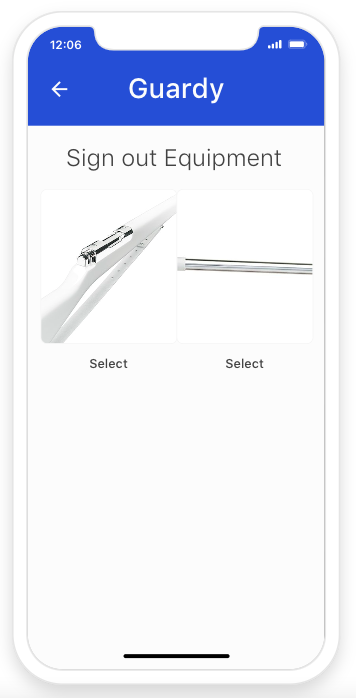
You will want to find the item you're signing out to the student.&#x20;

<div align="left"><figure><img src="https://4175712474-files.gitbook.io/~/files/v0/b/gitbook-x-prod.appspot.com/o/spaces%2FhPsk0uM1YeF90QV1USxb%2Fuploads%2FfytPhzFYyp7qhQt7nok9%2FScreen%20Shot%202023-04-30%20at%2012.06.12%20PM.png?alt=media&#x26;token=bc83c9cd-fabe-4f1c-a277-75d344e60755" alt=""><figcaption></figcaption></figure></div>

## imageStep 3

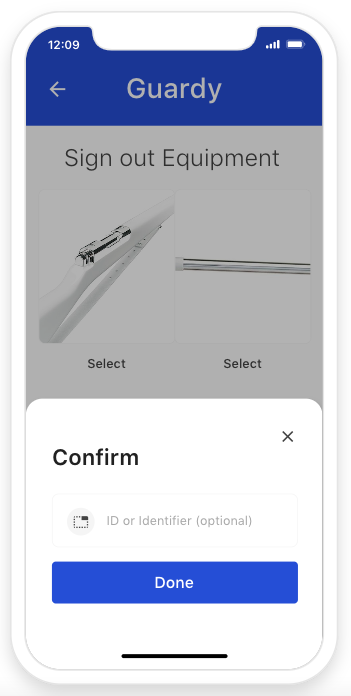
You can enter the items ID or Identifier for that student such as a number or letter.

{% hint style="info" %}
Coming Soon Guardy is going to enable NFC in our app. What does this mean? You will be able to attach a NFC sticker to your equipment and then tap your phone to the sticker on the item to either search, take inventory count, or help student find their equipment. This will also help with storage bins or bags with flags as well.&#x20;
{% endhint %}

<div align="left"><figure><img src="https://4175712474-files.gitbook.io/~/files/v0/b/gitbook-x-prod.appspot.com/o/spaces%2FhPsk0uM1YeF90QV1USxb%2Fuploads%2FRYoKJeRiaE9yIDbyU9QJ%2FScreen%20Shot%202023-04-30%20at%2012.09.20%20PM.png?alt=media&#x26;token=07123a67-698f-4863-9d33-3b57348c2a6d" alt=""><figcaption></figcaption></figure></div>

Once you have clicked on done this item will be logged into the students profile.&#x20;