# Add a Flag

To add a flag into your organization's inventory you will want to follow these steps:&#x20;

## Step 1&#x20;

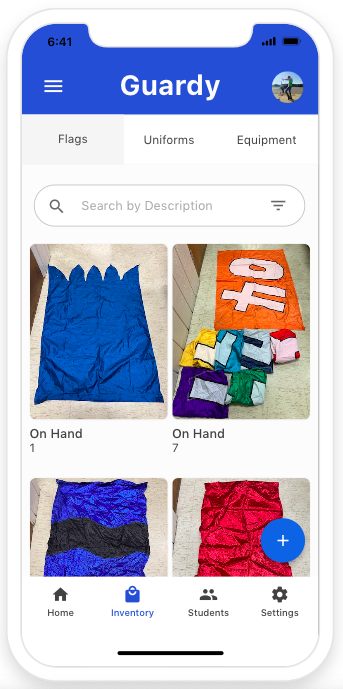
You will want to select the Inventory tab located on the bottom on the screen.

<div align="left"><figure><img src="https://4175712474-files.gitbook.io/~/files/v0/b/gitbook-x-prod.appspot.com/o/spaces%2FhPsk0uM1YeF90QV1USxb%2Fuploads%2FizjZ8Td4k828Qh3WIoNF%2FScreen%20Shot%202023-04-23%20at%206.37.49%20PM.png?alt=media&#x26;token=e160078a-c1c1-471e-abad-30ddbf96ab3f" alt=""><figcaption></figcaption></figure></div>

## Step 2

Now you will want to click on the blue plus button on the bottom right hand side of the screen.

<div align="left"><figure><img src="https://4175712474-files.gitbook.io/~/files/v0/b/gitbook-x-prod.appspot.com/o/spaces%2FhPsk0uM1YeF90QV1USxb%2Fuploads%2Fc7SanCTLVsUsd1R61eov%2FScreen%20Shot%202023-04-23%20at%206.41.10%20PM.png?alt=media&#x26;token=bf33a100-228e-4e25-85bf-fe2931a18a7b" alt=""><figcaption></figcaption></figure></div>

## Step 3

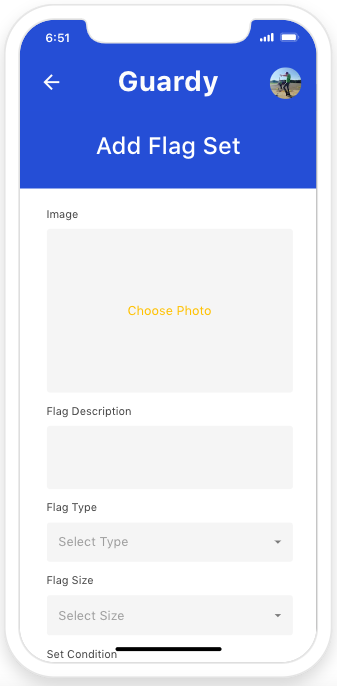
Now you will want to complete the form and then click on done to save the flag set into your inventory.&#x20;

{% hint style="info" %}
Make sure to set your purchase price based off the total quantity you have on hand. This helps ensure your revenue reports are accurate.&#x20;
{% endhint %}

<div align="left"><figure><img src="https://4175712474-files.gitbook.io/~/files/v0/b/gitbook-x-prod.appspot.com/o/spaces%2FhPsk0uM1YeF90QV1USxb%2Fuploads%2FWOV0Rn4YlDNNdEVed47I%2FScreen%20Shot%202023-04-23%20at%206.51.25%20PM.png?alt=media&#x26;token=d1a07bdc-2ea7-4e52-b97f-5f138d737da9" alt=""><figcaption></figcaption></figure></div>